To log in to the My Schedule McDonald’s 2.0 portal, McDonald’s employees need their User ID and password. Depending on the login screen, you may also be asked to enter a CAPTCHA before accessing your schedule.
If you are looking for the McDonald’s My Schedule login, are unsure how the Reflexis login works, or have forgotten your password or User ID, this guide explains the main steps and common solutions.
My Schedule is an employee-only scheduling system, so access is restricted to authorized McDonald’s employees. Keep your login credentials private and never share your password with coworkers. If you believe your password has been exposed, change it as soon as possible.
What Is My Schedule McDonald’s 2.0 (Zebra Workcloud)?
My Schedule McDonald’s 2.0 is an employee scheduling system used to access work schedules and other workforce-management features. The platform is associated with Reflexis ONE, which is now part of Zebra Technologies’ Workcloud suite.
You may therefore see several names used for the same scheduling platform, including:
- My Schedule McDonald’s
- My Schedule 2.0
- McDonald’s Reflexis
- Reflexis MySchedule
- Zebra Workcloud
- Workcloud Shift
The exact features available can vary depending on the employee’s role, restaurant, and local McDonald’s setup.
My Schedule vs. MyStuff 2.0
It is important not to confuse My Schedule with MyStuff 2.0.
My Schedule is primarily associated with employee scheduling and shifts, while MyStuff 2.0 may be used for payslips, HR information, and other employee-related services.
If you are trying to find a payslip rather than your work schedule, make sure you are using the appropriate McDonald’s employee portal.
My Schedule McDonald’s 2.0 Login: Step-by-Step
Follow these steps to access the McDonald’s My Schedule portal:
- Open the official McDonald’s scheduling portal provided by your restaurant or employer.
- Wait for the Reflexis/Zebra Workcloud login page to load.
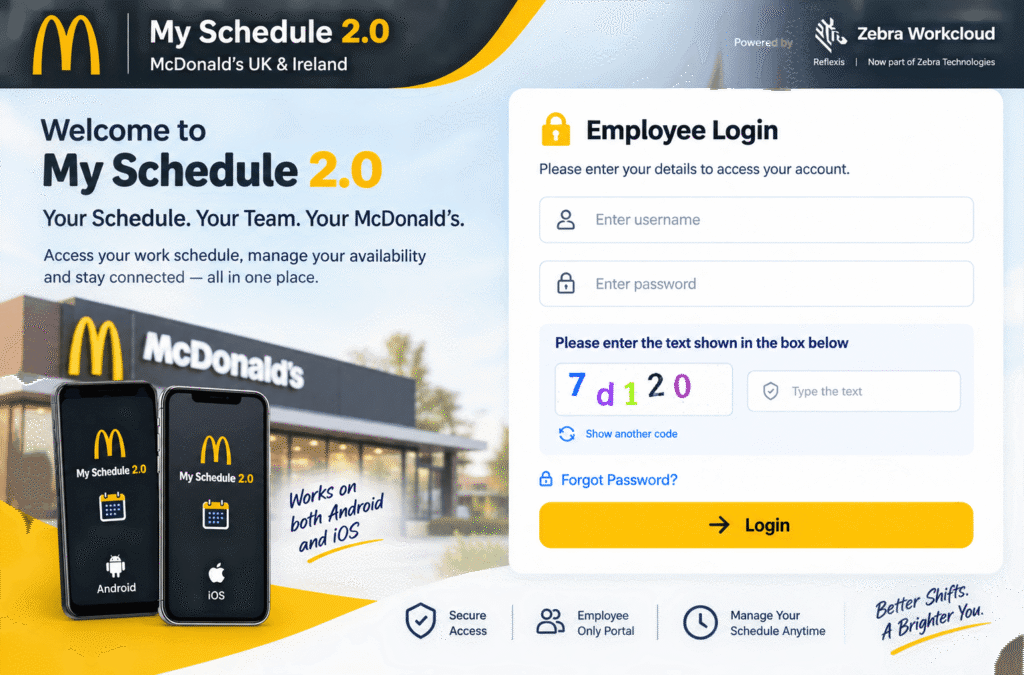
- Enter your User ID.
- Enter your Password.
- If a CAPTCHA appears, enter the characters shown on the screen.
- Select Login to access your account.
Make sure your User ID and password are entered correctly. Passwords are generally case-sensitive, so check whether Caps Lock is enabled if your credentials are being rejected.
If your restaurant has provided a specific login link, it is best to use that link rather than relying on an unofficial website or search result.
What Can You Do After Logging In?
Once you successfully access My Schedule McDonald’s, the features available to you may depend on your restaurant and employee permissions.
Common scheduling functions can include:
- Checking upcoming shifts
- Viewing your work schedule
- Reviewing availability
- Requesting time off
- Managing certain scheduling preferences
- Participating in shift-related activities where enabled
If a particular option does not appear in your account, your restaurant or manager may not have enabled that feature for your role.
My Schedule McDonald’s Mobile App
Employees may also have access to the Workcloud Shift mobile application, depending on their McDonald’s location and configuration.
The app is designed to make employee scheduling more convenient from a mobile device. Depending on the features enabled for your account, you may be able to:
- View upcoming shifts
- Check your work schedule
- Request time off
- Manage availability
- Participate in shift swaps
- View other scheduling information
If the mobile app does not work with your account, check with your restaurant manager or internal McDonald’s support team for the correct application and login method.
Can I Access My Schedule Without a Smartphone?
Yes, you do not necessarily need a smartphone to access your work schedule.
If your restaurant provides an employee or scheduling kiosk, you may be able to check your schedule there using your authorized login credentials. Availability of kiosks and their features can vary by location.
How Do I Reset My McD My Schedule McDonald’s Password?
If you have forgotten your McDonald’s My Schedule password, look for the password recovery option on the login page.
Generally, the process works like this:
- Open the My Schedule login page.
- Select Forgot Password.
- Enter your User ID.
- Select Submit.
- Follow the instructions provided for your account.
- Create a new password when prompted.
The exact recovery process may vary depending on your restaurant’s configuration. If the online password reset option does not work, contact your manager or McDonald’s internal support team.
How Do I Recover My McD My Schedule McDonald’s User ID?
If you cannot remember your My Schedule User ID, check the login page for a Forgot User ID or account-recovery option.
A typical recovery process may include:
- Open the My Schedule login page.
- Select Forgot Password or the available account-recovery link.
- Choose Forgot User ID, if available.
- Enter the recovery information associated with your account.
- Select Submit.
- Follow the instructions displayed on the screen.
My Schedule Account Help
If you no longer have access to the recovery information associated with your account, your restaurant manager may be able to help you verify your account and regain access.
Common My Schedule McDonald’s Login Problems
Having trouble signing in? Try these solutions before contacting support.
Incorrect User ID or Password
Check that you are entering the correct User ID and password. Remember that passwords can be case-sensitive.
If you recently changed your password, use the new password rather than an older saved password.
CAPTCHA Not Working
If the CAPTCHA is not loading correctly, try:
- Refreshing the login page
- Opening the page in another supported browser
- Clearing your browser cache
- Checking your internet connection
- Trying again after a few minutes
My Schedule Is Not Showing My Shifts
If you can log in but your McDonald’s work schedule is missing or has not updated, the schedule may not have been published or updated for your location yet.
You can also refresh the page or app and check again. If the problem continues, ask your shift manager whether the latest schedule has been published.
My Schedule Account Is Locked
If repeated unsuccessful login attempts have locked your account, avoid repeatedly entering different passwords. Use the available account-recovery option or contact your restaurant manager/internal support team for assistance.
The Login Page Isn’t Loading
If the My Schedule login page will not load, check your internet connection and try another browser or device. Temporary service or network problems can also prevent the login page from working normally.
How to Keep Your My Schedule Account Secure
Your McDonald’s employee login contains account information that should be protected.
Follow these basic security practices:
- Never share your password with coworkers.
- Do not use the same password on multiple unrelated accounts.
- Avoid saving your password on a shared computer.
- Log out after using a shared restaurant kiosk or computer.
- Change your password if you believe someone else knows it.
- Keep your recovery information up to date where applicable.
- Only enter your credentials on the legitimate login page provided by your employer.
Frequently Asked Questions
What is My Schedule McDonald’s 2.0?
My Schedule McDonald’s 2.0 is an employee scheduling platform associated with the Reflexis/Zebra Workcloud workforce-management system. It allows authorized employees to access scheduling information and, depending on their permissions, use additional scheduling features.
Is My Schedule McDonald’s the same as MyStuff 2.0?
No. My Schedule and MyStuff 2.0 serve different purposes. My Schedule is focused on employee scheduling, while MyStuff 2.0 may provide access to payslips and other HR-related information.
What do I need to log in to My Schedule McDonald’s?
You generally need your User ID and password. A CAPTCHA may also appear on the login screen.
How do I reset my McDonald’s My Schedule password?
Select Forgot Password on the login page and follow the account-recovery instructions. You will generally need your User ID to begin the recovery process.
Can I recover my My Schedule User ID?
If your login page provides a Forgot User ID option, follow the displayed recovery process. If you cannot access the required recovery information, contact your restaurant manager or internal support team.
Can I check my McDonald’s schedule on my phone?
If your restaurant supports the Workcloud Shift mobile application, you may be able to view your schedule and use other scheduling features from your phone.
Can I use My Schedule without a smartphone?
Yes. If your restaurant provides a scheduling or employee kiosk, you may be able to access your schedule there without a smartphone.
Why can’t I see my McDonald’s schedule?
Your schedule may not have been published or updated yet, or there could be an account or system issue. Refresh the page or app first. If the problem continues, contact your shift manager.
Conclusion
My Schedule McDonald’s 2.0 provides authorized employees with a convenient way to access their work schedules and, where enabled, manage scheduling-related tasks.
Whether you use a computer, supported mobile application, or an in-store kiosk, make sure you use the login method provided by your McDonald’s location and keep your credentials secure.
If you cannot sign in after checking your User ID and password or using the available recovery options, your restaurant manager or McDonald’s internal support team can help verify your account and restore access.