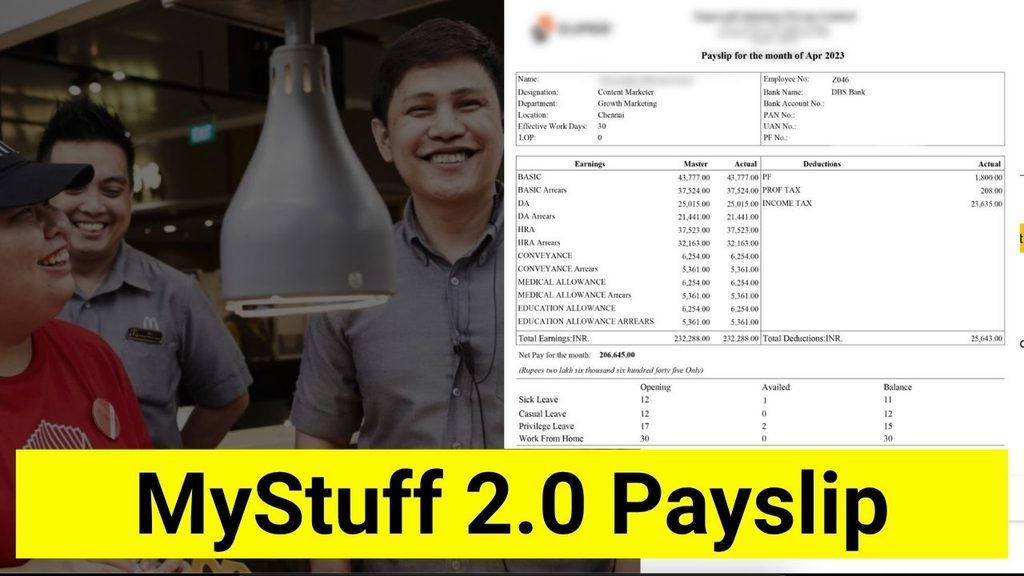
MyStuff 2.0 Payslip is the digital payslip feature available through McDonald’s employee self-service portal, mainly used by staff in the UK and Ireland. Employees can use it to view current and previous payslips, download payslips as PDFs, check pay information, and access certain tax documents such as P60 and P45.
What Is a MyStuff 2.0 Payslip?
A MyStuff 2.0 payslip is an online version of an employee’s pay statement. Instead of receiving only a paper payslip, employees can access their payroll information through their MyStuff 2.0 account.
Depending on the restaurant, region, or employment arrangement, the payroll area may appear under labels such as Payroll, Employee Files, My Pay, or Financial Settings.
The payslip area can contain:
- Current payslips
- Previous payslips
- Hours worked
- Gross pay
- Tax and other deductions
- Net pay
- Year-to-date pay and tax figures
- Holiday information where available
- P60 and P45 tax documents when applicable
MyStuff 2.0 Payslip Quick Overview
| Feature | Details |
|---|---|
| Portal | MyStuff 2.0 |
| Main use | View and manage employee payslips |
| Payslip format | Digital/PDF |
| Access | Web browser, including mobile |
| Typical location | Payroll, Employee Files, My Pay |
| Information shown | Hours, pay, deductions, tax and net pay |
| Tax documents | P60 and P45 when available |
| Typical upload timing | 1–2 days before payday |
| Retention stated in handbook | Four full tax years |
| Support for errors | Manager, HR or payroll team |
MyStuff 2.0 Payslip
To access MyStuff 2.0 Payslip, go to www.mcdstuff.co.uk, log in with your Employee ID and password, open Payroll or Employee Files, select your pay period, and click View to access your digital payslip.
How to View Your MyStuff 2.0 Payslip
Follow these simple steps to acces your MyStuff 2.0 Payslip:
- Log in to MyStuff 2.0 using your Employee ID and password.
- Look for the Payroll, Employee Files, or My Pay section.
- Open the payslip or payroll folder.
- Select the required month or pay period.
- Choose View or Download to open the payslip.
- If required, save the payslip as a PDF for your records.
Menu names can vary slightly depending on your location and employment setup.
How to Download a MyStuff 2.0 Payslip
Employees can generally download their payslips as PDF documents. After signing in, open the payroll or employee files section and select the required pay period.
Downloading payslips can be useful when you need proof of income for purposes such as:
- Renting a property
- Applying for a loan or mortgage
- Keeping tax records
- Applying for benefits
- Visa or financial documentation
- Employment-related records
It is a good idea to keep copies of important payslips rather than relying only on the online portal.
What Information Is on a MyStuff 2.0 Payslip?
A MyStuff 2.0 payslip can contain several important details about your earnings and deductions.
- Employee Details: The payslip may show your name, employee number, and, in some cases, your restaurant or location.
- Pay Period: This identifies the dates covered by the particular payslip.
- Hours Worked: The payslip can show the hours you worked. Depending on your contract and payroll setup, hours may be divided into different categories such as normal, overtime, weekend, or night hours.
- Gross Pay: Gross pay is your total earnings before applicable deductions are taken.
- Tax and Other Deductions: For UK employees, deductions can include PAYE tax and National Insurance. Other deductions, such as pension contributions or advances, may also appear where applicable.
- Net Pay: Net pay is the amount remaining after deductions and is generally the amount paid into your bank account.
- Year-to-Date Figures: Your payslip may also include year-to-date figures showing cumulative pay and tax information.
- Holiday Information: Holiday allowance or balance may appear on a recent payslip or through a related absence section, depending on the setup.
When Does a MyStuff 2.0 Payslip Appear?
The timing of a payslip depends on the employee’s payroll arrangement.
The supplied information indicates that payslips are commonly uploaded one to two days before payday. Pay frequency can also vary. Some UK arrangements are monthly, while some employee handbooks describe payment every other Thursday.
Because pay schedules can differ by franchise or contract, employees should use their own agreed payday as the main reference.
How Long Does MyStuff 2.0 Keep Payslips?
An employee handbook extract states that payslips remain in MyStuff 2.0 for four full tax years before being removed.
For this reason, employees should download and securely store payslips that they may need for long-term records.
This can be particularly useful for:
- Mortgage applications
- Rental applications
- Tax records
- Visa applications
- Benefits applications
- Payroll disputes
MyStuff 2.0 Payslip Not Showing
If your payslip is not visible, there may be several possible reasons.
New Employee or Missing Payroll Tile
For new employees, onboarding information may need to be completed before all MyStuff 2.0 features become available. According to the supplied details, it can take approximately 24–48 hours after completing onboarding for relevant tiles to appear.
Payslip Has Not Been Uploaded Yet
If you are checking before payday, the payslip may simply not have been uploaded. Check again around the expected payday, particularly one or two days before or after it.
Contact Your Manager or Payroll Team
If other employees can see their payslips but yours is missing, contact your restaurant manager, HR team, or payroll support.
MyStuff 2.0 Payslip Has Incorrect Hours or Pay
If your payslip contains incorrect hours, pay rates, deductions, or another payroll error, speak with your restaurant manager or payroll/HR team.
They can review the issue and, where necessary, raise a correction with the payroll provider.
Do not assume that an incorrect figure will automatically correct itself. Report discrepancies as soon as possible.
MyStuff 2.0 Payslip PDF Won’t Open
If you cannot open or download your payslip PDF, try the following:
- Refresh the MyStuff 2.0 portal.
- Try another web browser.
- Try accessing the portal from another device.
- Check whether your browser is blocking pop-ups.
- Log out and sign in again.
- Contact your manager or payroll support if the problem continues.
Can You Access MyStuff 2.0 Payslip on Mobile?
Yes. The supplied information indicates that MyStuff 2.0 is mobile-friendly and can be accessed through a web browser.
On a smartphone, employees can generally:
- Sign in to MyStuff 2.0
- Open Payroll or Employee Files
- Select a payslip
- View the document
- Download the payslip
There is no separate payslip-only app required according to the supplied details. Employees may also bookmark the login page in their mobile browser for easier access.
P60 and P45 on MyStuff 2.0
MyStuff 2.0 may also provide access to tax-related documents.
A P60 can be available as an end-of-year tax document, while a P45 may be provided when an employee leaves employment.
Availability and timing can depend on the employee’s circumstances and payroll setup.
What Happens to Payslips When You Leave McDonald’s?
When an employee leaves, the supplied information indicates that they may retain temporary, restricted access to MyStuff 2.0 so they can download final payslips and relevant tax documents.
Because access may not remain available indefinitely, it is sensible to download important documents before or around the end of employment.
MyStuff 2.0 Payslip Security
Payslips contain personal and financial information, so employees should take reasonable steps to protect their accounts and downloaded documents.
Recommended practices include:
- Never share your MyStuff 2.0 login credentials.
- Use a strong password.
- Use two-factor authentication where available.
- Log out when using a shared restaurant computer.
- Avoid accessing or downloading payslips over unsecured public Wi-Fi.
- Store downloaded PDF payslips securely.
Frequently Asked Questions About MyStuff 2.0 Payslip
Log in to MyStuff 2.0 with your Employee ID and password, then open Payroll, Employee Files, or My Pay. Select the required pay period and choose View or Download.
Yes. The supplied information indicates that payslips can generally be opened and downloaded as PDF files.
Payslips usually appear around one to two days before the actual payday, although timing can vary according to the payroll arrangement.
An employee handbook extract states that payslips remain available for four full tax years before being removed.
It may not have been uploaded yet, particularly if payday has not arrived. New employees may also need to complete onboarding before payroll features become available.
Contact your restaurant manager or payroll/HR team and report the incorrect hours, pay, deductions, or other information so the issue can be investigated.
Yes. MyStuff 2.0 is described as mobile-friendly, allowing employees to use a smartphone browser to access and download payslips.